



Hey there 👋
Looks like you made it to Part 3 and I respect the consistency.
A quick recap - In the previous piece, we focused on communication aka choosing the right channel, understanding encryption, and accepting the tradeoffs that come with it. If you missed that one, go back and read it first. This builds directly on it.
For anyone new here: this is Part 3 of a practical privacy series designed to help you secure your digital life step by step.
Now here’s a little surprise - even if you’ve done everything right so far - hardened authentication, improved your communication tools - you’re still exposed.
Why?
Say hello to your browser.
Most of your digital life flows through it. Whether it’s your email, work dashboards, banking. Social media - Your browser quite literally sees everything. And even with strong logins and encrypted messaging, browsers still collect and leak behavioral data in ways most people never think about.
But don’t worry - we’re going to fix that.
And before starting, just a quick heads up for the new folks, If you’re unsure about the sequence, follow this order:
How Web Tracking Actually Works
Every website you visit has ways of remembering you. Some of those ways feel harmless while some of them don’t.
The most common method is the cookie. A cookie is a small text file your browser stores when you visit a site. It keeps track of things like your previous visits, preferences, and activity. That’s why your shopping cart doesn’t reset every time you refresh the page. It’s why websites remember your language settings or keep you logged in.
There are two kinds worth knowing about:
First-Party Cookies
First-party cookies are created by the site you’re actually visiting. They’re part of the agreement you implicitly make with that site: “Remember my preferences so this works better.” If you add items to a cart or log into an account, that memory lives inside a first-party cookie. The information stays with that domain.
Third-party cookies
These are set by a completely different domain than the one in your address bar. Usually advertisers, data brokers or analytics firms. Third-party cookies are mainly used for three things:
Tracking - They track you across different websites to see what you may buy.
Retargeting - They send you to a website that sells products you may like.
Ad-Serving - They deliver personal ads that target your desires.
Btw these cookies are almost everywhere - one study found third-party tracking cookies on 92% of websites.
Anyway, let’s take the following example to understand third-party cookies better.
You visit a news site, but behind the scenes it loads content from ad networks. Those networks drop their own cookies into your browser. If that same ad network appears on thousands of websites, it can recognize you on every single one of them through the tiny identifier stored in your browser aka cookie.
This is called cross-site tracking and cookies are just one of many ways to achieve cross-site tracking.
How Tracking Pixels Work
Websites also embed tracking pixels. Pixels are tiny invisible 1×1 images or scripts. You’ll never see them. But when your browser loads the page, it automatically contacts another server. That server logs your IP address, your device type, your browser, the page you just visited and much more. If there’s already a third-party cookie in place, it connects the dots.
So while you think you’re just reading an article, multiple companies may be notified that you were there.

For example, if a page includes a tracking pixel from a large social media company, your browser reports your visit back to that company the moment the page loads.
You can put it this way - a pixel doesn’t identify you by itself. Instead, it acts as the messenger while cookies hold all the actual tiny details about you.
Together, they create something bigger - “cross-site tracking” aka the ability to follow the same person across completely different websites. And cross-site tracking can be achieved through various other methods such as: Browser fingerprinting, Cname cloaking and many more techniques (I won’t be talking about all of them.)
Tracking Through Fingerprinting
A digital fingerprint is exactly what it sounds like - a list of characteristics that, when combined, point to a single device.
Every time you open a website, your browser sends information so the page can load properly because it has to. Things like your browser type, operating system, language settings, and approximate location. But that’s just the beginning. Scripts running in the background can also see your screen resolution, time zone, installed fonts, device memory, graphics settings, and dozens of other small technical details.
At first glance, the pieces feel mundane, but when compiled and analyzed at scale, they create a stable identifier. One that can follow you across websites.
Tracking companies stitch these fragments into a unique profile that distinguishes your device from millions of others by just observing how your system is configured.

It’s important to note that Ad networks rely on two primary ways to keep tabs on users: cookie tracking (which we’ve already discussed) and browser fingerprinting. Cookies store an ID inside your browser. Fingerprinting doesn’t need to store anything at all. It simply recognizes you when you show up.
And because most devices are typically used by one person, identifying the device often means identifying the user.
In short, everything observable gets collected. Everything collected gets compared and the result is a persistent identity tied to your browsing behavior.
For anyone wondering whether clearing cookies solves the problem - this is why it doesn’t. Browser fingerprinting bypasses that reset button entirely. And if you want to test out how much data is collected when you visit a website - check out this website, and click “test your browser.”
Chrome - The Default Browser With a Business Model
Most users just open their browsers and start using it. For the majority of the world, that browser is Chrome. Recent market share estimates consistently show Chrome controlling well over 60% of global browser usage. In other words, when we talk about how the web works, we’re largely talking about how Chrome works.
Truth be told - Google is one of the most powerful advertising machines ever built. While people see Google as a search engine, its core business is advertising. The overwhelming share of its revenue comes from selling targeted ads.
And targeted ads require data.
Chrome and Google Search are two of the most efficient data collection tools ever deployed at scale. Every search query and interaction feeds into a system designed to refine what it knows about you. The more signals Google gathers, the sharper its ad targeting becomes. The sharper the targeting, the higher the ad revenue.
Open Chrome right now. Look at the top right corner. If you see your profile picture or your name, you’re signed in. That means your browsing activity may be linked directly to your Google account.
Don’t remember signing in? You’re not alone. Chrome has increasingly nudged and in some cases automatically signed in - users who log into Gmail or other Google services.
On mobile, it goes further. If you’re using Android, Chrome is tightly integrated with the operating system. Location data can be transmitted when you search. Even when users disable location sharing, less precise coordinates can still be inferred.
If you want to understand just how central Chrome is to the modern tracking ecosystem, deeper investigations are worth reading - particularly reporting from The Inquirer and independent privacy researchers who have examined Chrome’s role in surveillance advertising.
Privacy-Focused Browser Options
There’s no shortage of browsers in the market. In recent years, newer privacy-centric projects like Mullvad Browser and Kagi’s emerging browser have emerged.
That said, I’m only recommending tools I’ve personally used and tested.
Firefox
Mozilla Firefox remains one of the strongest all-around browsers for privacy and security. It combines solid built-in protections and a track record that’s difficult to ignore.
It stands as a genuine alternative to Google Chrome, Microsoft Edge, and even Safari.
There’s a reason Tor Browser is built on Firefox. The Tor developers chose it because Firefox can be hardened and locked down in ways Chromium-based browsers simply cannot match. It’s also why you’ll see Firefox set as the default browser across many Linux distributions.
Put simply - Firefox has earned its reputation.
That said, out of the box, it’s not fully optimized for privacy. You’ll need to spend some time hardening it.
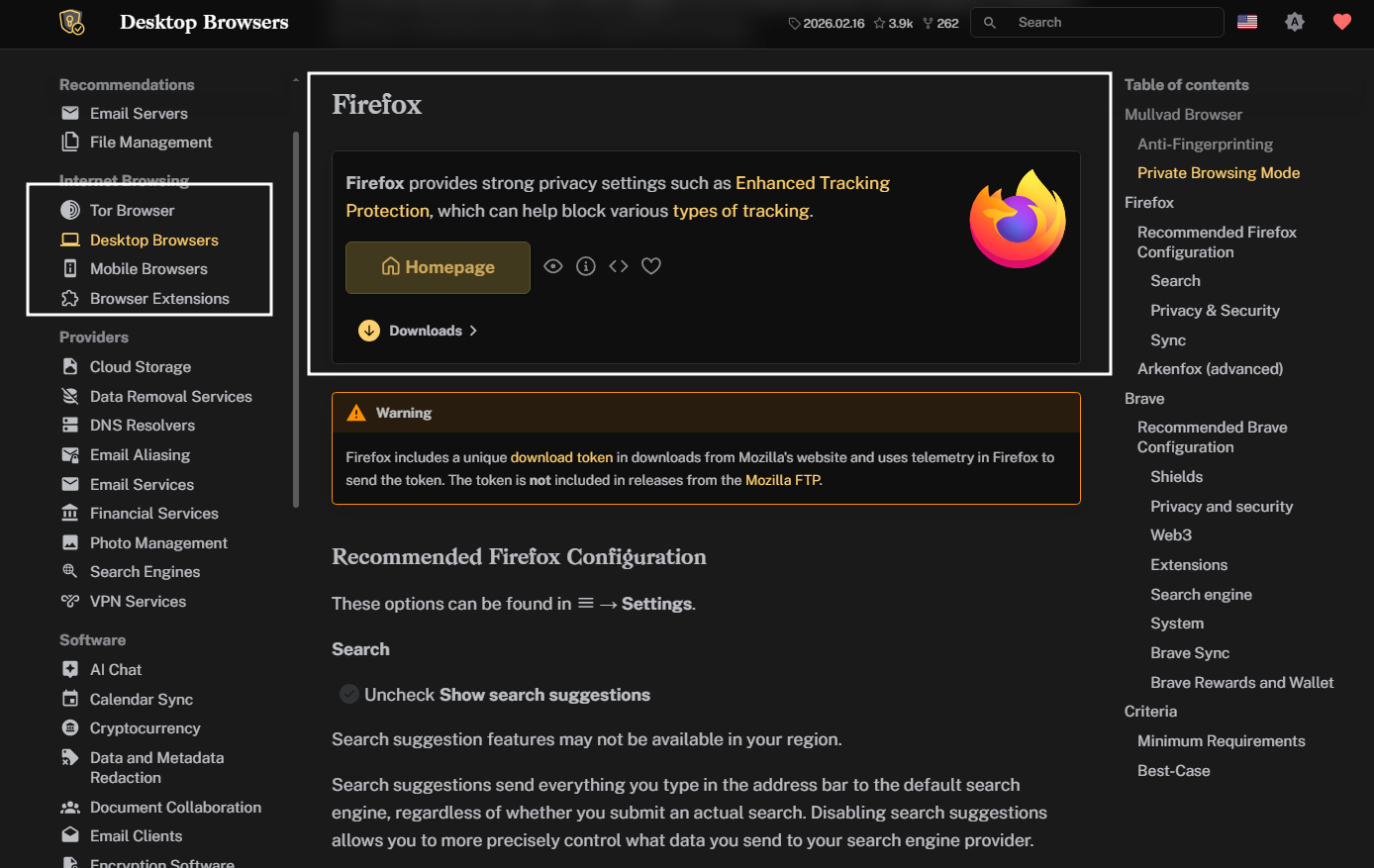
A clear, step-by-step guide is available at Privacy Guides. Navigate to “Desktop Browsers,” scroll to Firefox, and you’ll find detailed instructions on which settings to enable or disable:
And if documentation isn’t your style, there’s also a practical walkthrough video available here:
Brave
Brave and Chrome are both built on Chromium, the open-source browser engine that also powers Edge, Opera, and Vivaldi. On the surface, they’ll feel familiar and any Chrome extension will work on Brave.
But the real difference is under the hood.
Brave ships with many privacy protections enabled by default. In Chrome, achieving similar functionality would require installing multiple extensions - each one adding overhead and potential security risk.
In practical terms, Brave delivers stronger default privacy with less configuration.
If you want a deeper comparison between the two, these resources break it down thoroughly:
You can download brave by visiting this link and for maximizing privacy settings, this configuration guide walks through it step by step:
One important thing to note - switch your default search engine from Google to Brave Search, Qwant, or DuckDuckGo. All three are privacy-respecting options. It ultimately comes down to preference. Lastly, don’t overthink about which browser to go with. Either Firefox or Brave, when properly configured, will significantly reduce passive tracking compared to Chrome.
For transparency - I’m currently using Brave, I prefer the interface.
Extra Protection Tools
The following extensions are optional. But if you want to push your setup further, they’re worth considering.
Ghostery
You can Install Ghostery directly by visiting this link.
Out of the box, its default configuration is solid. You don’t need to tweak much unless you want to.
Ghostery acts as an additional filtering layer on top of your browser’s native protections. It strengthens tracker blocking and improves visibility into who’s attempting to collect data on you.
Password Manager Extension
Although this isn’t directly about tracking, it ties back to Part 1 of this series.
If you’re using a password manager (which you should be) install its browser extension. Visiting the vault website every time adds friction. Friction reduces consistency. Reduced consistency weakens security.
I personally use Bitwarden. If you do as well, you can get the extension here
Optimizing Your Behavior to Build Privacy Habits
keep in mind, neither any browser nor any hardened configuration can protect you if your own behavior keeps undoing the work. At some point, you are the control surface and if you’re careless, all your efforts will be for nothing.
Privacy is alignment between what you want and how you operate daily. Without that alignment, even the strongest setup erodes over time. And if you want a private digital life, your daily behavior has to match it.
Separate to Stay Separate
One of the simplest and most effective privacy habits is isolation.
Use separate browsers or at minimum, separate browser profiles - for different parts of your life. For example: you can use one browser profile for work and the other for personal browsing. What’s important is to - keep them isolated.
Why?
Because correlation is how companies map you.
When your banking sessions, social media activity, shopping behavior, and professional research all flow through the same browser identity, it becomes child’s play for companies to stitch together a detailed profile about you.
But, segmentation can disrupt that.
What’s interesting is, you can take this same logic and scale it up.
One email for banking and formal communication.
One email for social media.
One junk email for online shopping and signups.
You can take it further if you want.
One device per activity.
One network per activity.
At that point, you should ask yourself “How private do you actually want to be?” Then use this logic and adjust things accordingly.
Permissions, Extensions, and Self-Inflicted Leaks
Earlier, I mentioned browser extensions. They are powerful, but that power cuts both ways. A poorly vetted extension can compromise your entire environment and this is more common than you think.
The first problem involves many users installing extensions casually and not even verifying if these extensions are safe to use.
Excess permissions are another problem: clipboard access, microphone access, camera access, location access. If a website or extension doesn’t absolutely need a specific permission, don’t grant it.
To understand how dangerous malicious extensions can be, consider a real-world case.
A malicious extension posing as a ChatGPT search tool remained available for months. Some compromised extensions had behaved legitimately for years before being activated. Once triggered, these extensions deployed mechanisms that intercepted user traffic.

Malwarebytes researchers described a scenario like this:
“You receive a Zoom meeting invitation and click the link. Instead of joining your meeting, one of the malicious extensions intercepts your request and redirects you to a convincing fake page claiming you need to download a “critical Zoom update” to join. You download what appears to be legitimate software, but you’ve just installed additional malware onto your system, potentially leading to full machine takeover and complete compromise of your device.”
Anyway, what you can do right now is identify the different extensions installed in your browsers, ask if you genuinely need them? Ask if they are actively maintained and reputable?
If the answer is “no” - remove it.
And if you suspect compromise:
Remove the extension.
Change your passwords everywhere.
Reinstall your operating system clean.
The Future of Browsing
We’re entering a new phase.
AI-native browsers are already appearing - OpenAI’s Atlas, Perplexity’s Comet, and others positioning themselves as the future of web interaction. All of them pitching the same thing - smarter browsing, seamless automation, personalized assistance…etc.
And increasingly of course - better privacy.
I do believe that this category will grow and AI browsers will become mainstream products.
But many of these platforms market privacy as a feature while operating on data-intensive models. The more intelligent the browser claims to be, the more context it needs to function effectively.
On top of that, novelty often comes at the expense of security maturity.
Comet being exploited was a reminder. New platforms frequently ship fast and harden later making early adopters mere scape goats.
So the advice remains simple - don’t get distracted by marketing, don’t confuse AI features with privacy guarantees and just stick to the fundamentals.
In the next piece, we move one layer deeper - beyond the browser itself. We’ll look at the network layer: networks, tunnels, and much more. That’s the final layer in this privacy series. The last cherry on top.
Stay tuned.
Thanks for reading.
See you next time.
The Algorithm is Winning!
I got a confession - most of my time goes into researching on topics - so, I can help you see what the system doesn’t want you to see. At this point, it’s me versus The Algorithm and the Algorithm is winning…
That’s why I need your help.
If SK NEXUS has earned a place in your inbox, consider subscribing if you haven’t already.
And if you’re active elsewhere, follow along on Bluesky or X (Twitter) or LinkedIn - those are three two places I show up most consistently outside Substack. A follow, a like, a repost - it matters to me, more than you think.
Independent research only works if the signal travels. If this work has been useful to you, help it travel.


Very well put together!